V-Ray Menu
This page provides information on the V-Ray menu integrated in 3ds Max interface.
Overview
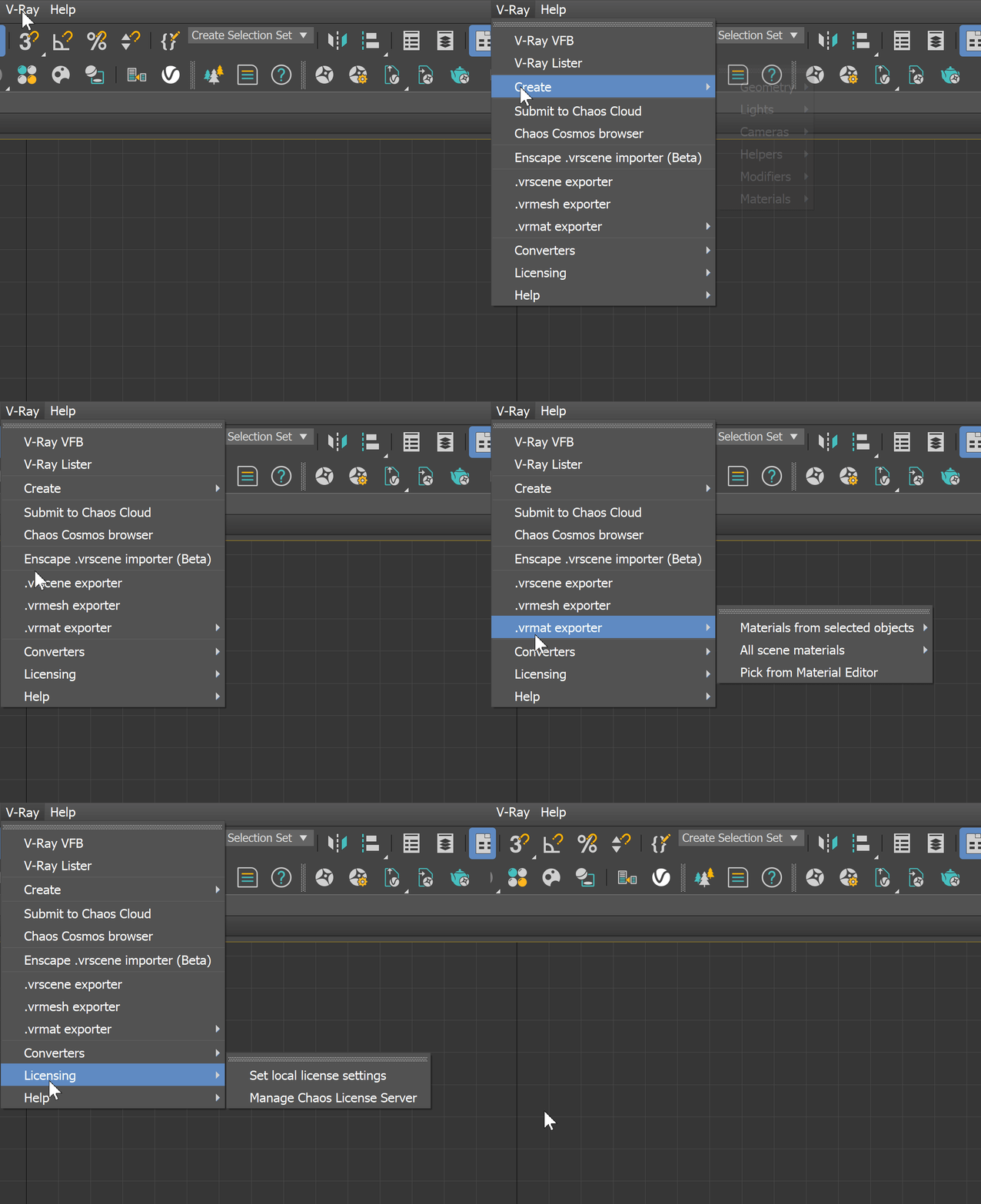
V-Ray includes a menu with easy shortcuts to some of the most commonly used V-Ray components. The menu can be accessed in the 3ds Max menu bar.
The menu consists of several different submenu's:
V-Ray VFB
Create
V-Ray Lister
Submit to Chaos Cloud
Chaos Cosmos browser
Enscape .vrscene importer
.vrscene exporter
.vrmesh exporter
.vrmat exporter
Converter
Licensing
Help
V-Ray Menu
|
Menu |
Description |
|
V-Ray VFB |
Opens the V-Ray Frame Buffer. |
|
Create |
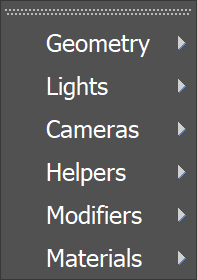
Opens the Create submenu, where you can create geometry, lights, cameras, helpers, modifiers, and materials. |
|
V-Ray Lister |
Opens the V-Ray Lister, where you can manage all lights and cameras in the scene. |
|
Submit to Chaos Cloud |
Opens the Submit to Chaos Cloud rendering window, where you can submit your job and render it in Chaos Cloud Rendering. |
|
Chaos Cosmos browser |
Opens the Chaos Cosmos Browser, where you can find various assets ready for use. |
|
Enscape .vrscene importer |
Opens the Enscape .vrscene importer, where you can import geometry, shading, lights, and cameras in your 3ds Max scene from .vrscene files exported by Enscape. |
|
.vrscene exporter |
Opens the V-Ray Scene Exporter standalone tool. |
|
.vrmesh exporter |
Opens the VRay mesh export window. |
|
.vrmat exporter |
Opens the VRmat Exporter submenu. |
|
Converters |
Opens the V-Ray converter tools submenu. |
|
Licensing |
Opens the Licensing submenu. |
|
Help |
Opens the Help submenu. |
Create Submenu
|
Menu |
Description |
Submenu |
|
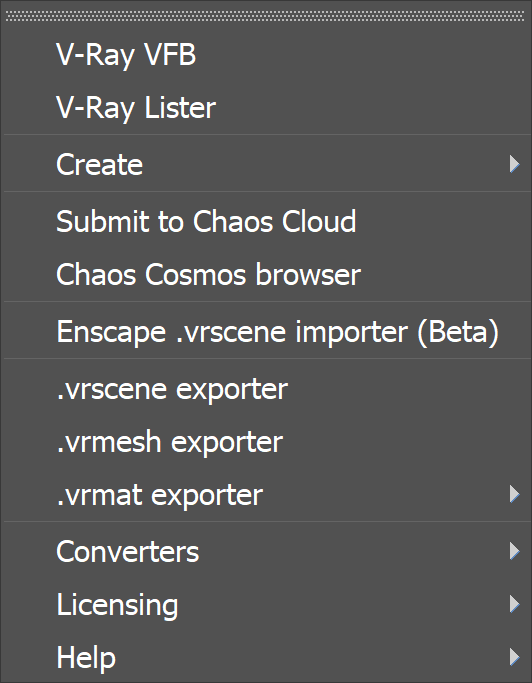
Geometry |
Opens a geometry submenu where you can create: |
|
|
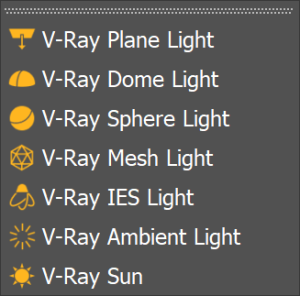
Lights |
Opens a lights submenu where you can create: |
|
|
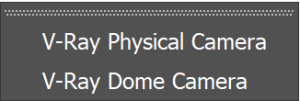
Cameras |
Opens a cameras submenu where you can create: |
|
|
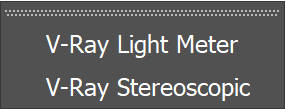
Helpers |
Opens a helpers submenu where you can create: |
|
|
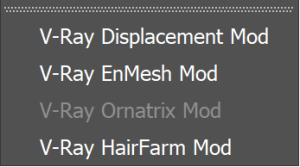
Modifiers |
Opens a modifiers submenu where you can apply: |
|
|
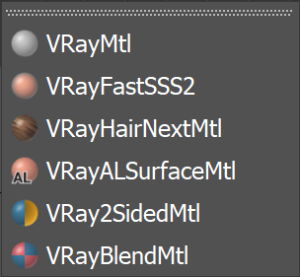
Materials |
Opens a modifiers submenu where you can create: – VRayMtl |
|
.vrmat exporter Submenu
|
Menu |
Description |
|
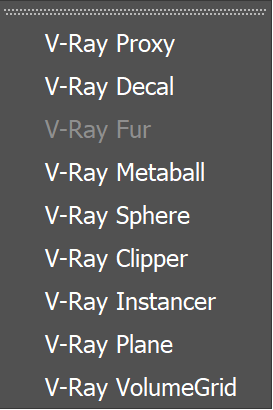
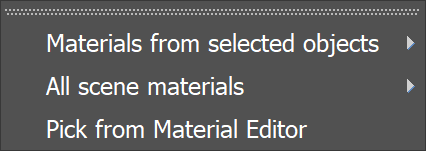
Material from selected objects |
Exports materials from selected objects to: – to a single .vrmat file – Opens a browser for saving a single file; name and location are required. – to separate .vrmat files – Opens a browser for saving multiple files; folder selection is required. The separate files inherit the original material names from 3ds Max. |
|
All scene materials |
Exports all materials from the scene: – to a single .vrmat file – Opens a browser for saving a single file; name and location are required. – to separate .vrmat files – Opens a browser for saving multiple files; folder selection is required. The separate files inherit the original material names from 3ds Max. |
|
Pick from Material Editor |
Opens the Material Editor for picking a material and then opens a browser for saving a single file; name and location are required. |
Converters Submenu
|
Menu |
Description |
|
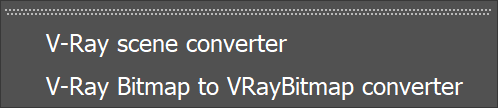
V-Ray scene converter |
Opens the V-Ray scene converter tool. |
|
V-Ray Bitmap to VRayBitmap converter |
Opens the V-Ray Bitmap to VRayBitmap converter tool. |
Licensing Submenu
|
Menu |
Description |
|
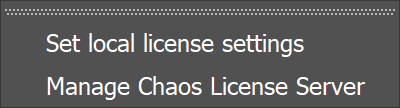
Set local license settings |
Opens a window where you can change your Chaos License Server settings. |
|
Manage Chaos License Server |
Opens Chaos License Server. |
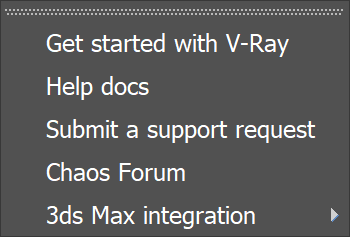
Help Submenu
|
Menu |
Description |
|
Get started with V-Ray |
Opens V-Ray for 3ds Max online learning resources such as tutorials and webinars. |
|
Help docs |
Opens the V-Ray for 3ds Max online documentation. |
|
Submit a support request |
Opens Chaos Help Center, where you can submit a request to Chaos Support team. |
|
Chaos Forum |
Opens Chaos Forum. |
|
3ds Max integration |
Opens 3ds Max integration submenu with the following options: – Register V-Ray menus - Registers the V-Ray menus, it's equivalent to the registerVRayMenus() MaxScript command. – Set default MAX V-Ray UI |