VRayToon Render Element
This page provides details on the V-Ray Toon Render Element.
Overview
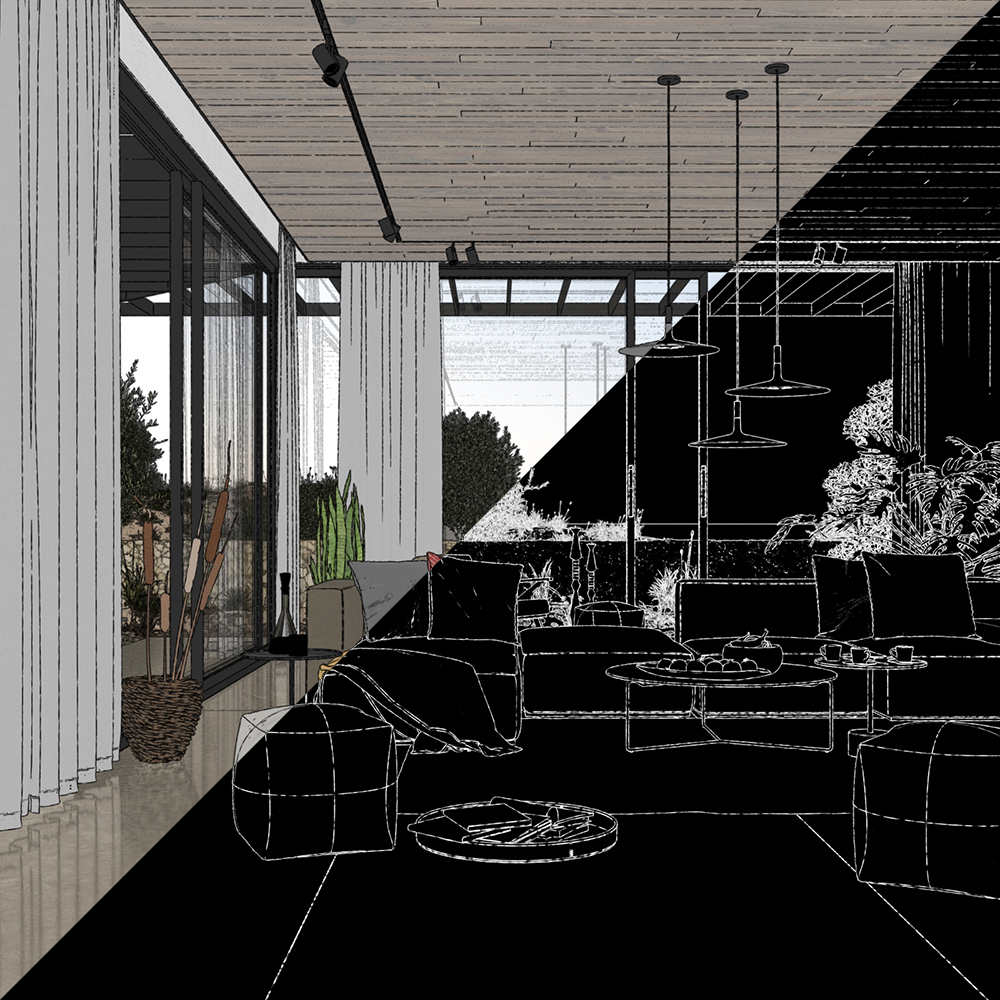
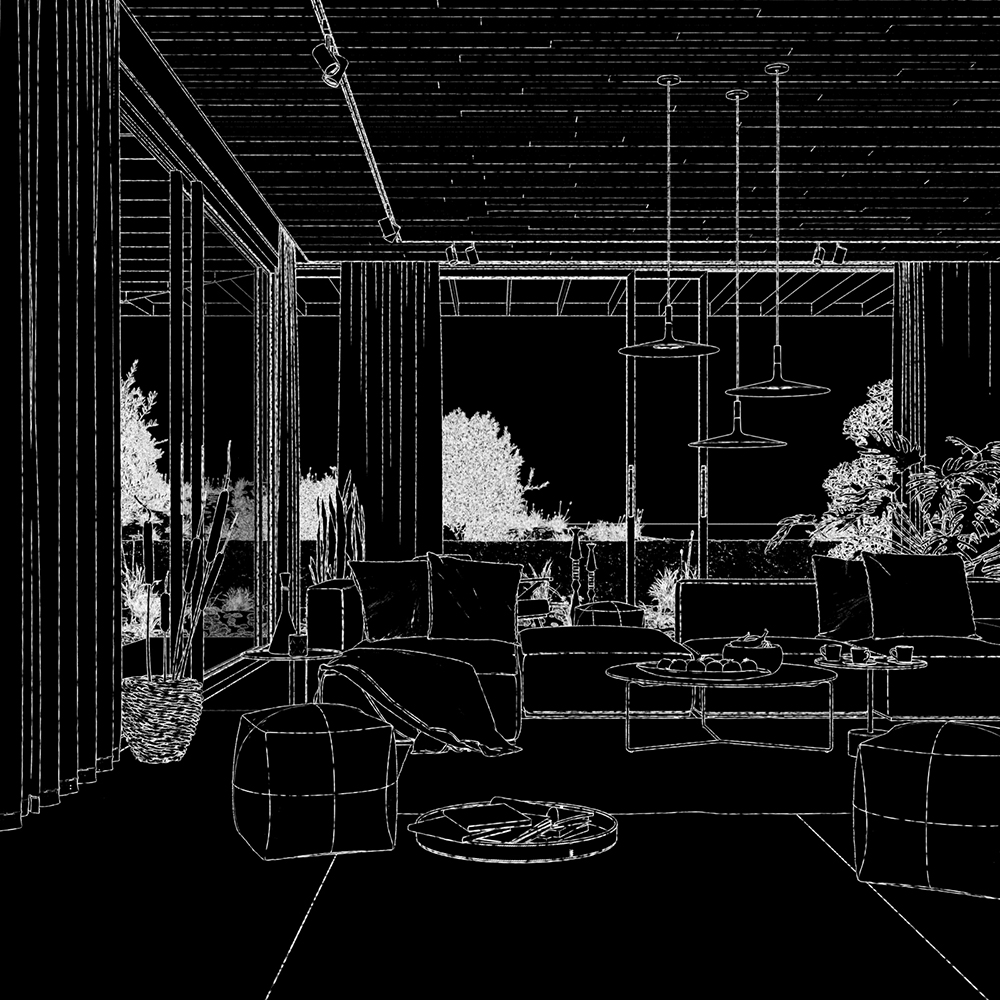
The V-Ray Toon Render Element renders the entire scene with the V-Ray Toon Render Effect and contains a mask for the toon outlines, although the toon color is not present in it. It also supports opacity set from the toon effect, presenting it as grayed outlines.
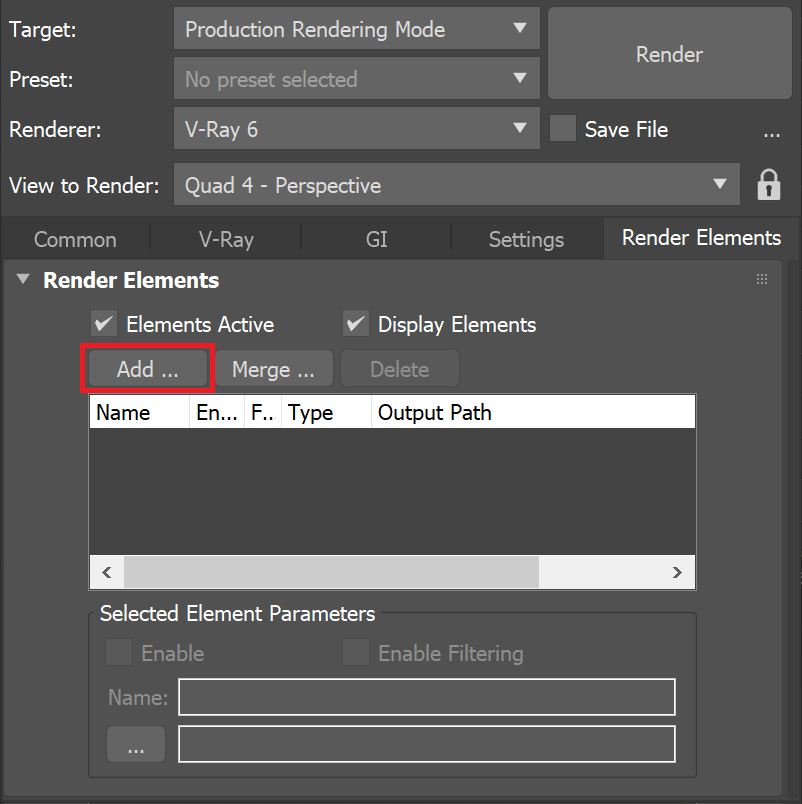
UI Path: ||Render Setup window|| > Render Elements tab > Add button > VRayToon
Parameters
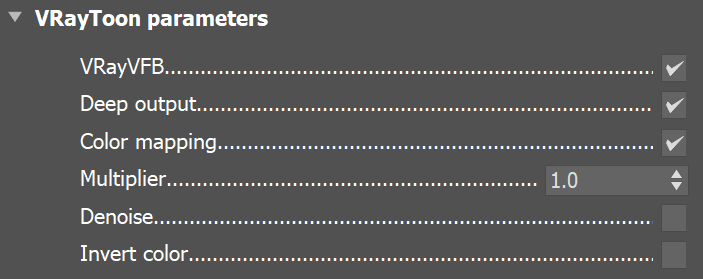
This render element is enabled through the Render Elements tab of the Render Setup window in 3ds Max and displays its parameters in a rollout at the bottom of the window:
VRayVFB – When enabled, the render element appears in the V-Ray Virtual Frame Buffer.
Deep output – Specifies whether to include this render element in deep images.
Color mapping – Applies the color mapping options specified in the Color mapping rollout (Render Setup window > V-Ray tab) to this render element. This option is enabled by default.
Multiplier – Sets the overall intensity of the render element, where 1.0 is the standard multiplier.
Denoise – Specifies whether to denoise this render element.
Invert color – Inverts the black and white colors.
For the toon effect to be visible in the V-Ray Toon Render Element, the VRayToon Render Effect must be present and active.
Common Uses
The V-Ray Toon Render Element is useful for changing the appearance of a render in a compositing or image editing application. The VRayToon Render Element holds a mask for the toon outlines (the toon color is not present in it).
It has an option to invert its output, so instead of white lines on a black background, we can get the opposite. It also supports opacity set from the toon effect. See how V-Ray Toon looks with inverted colors.
OriginalInverted
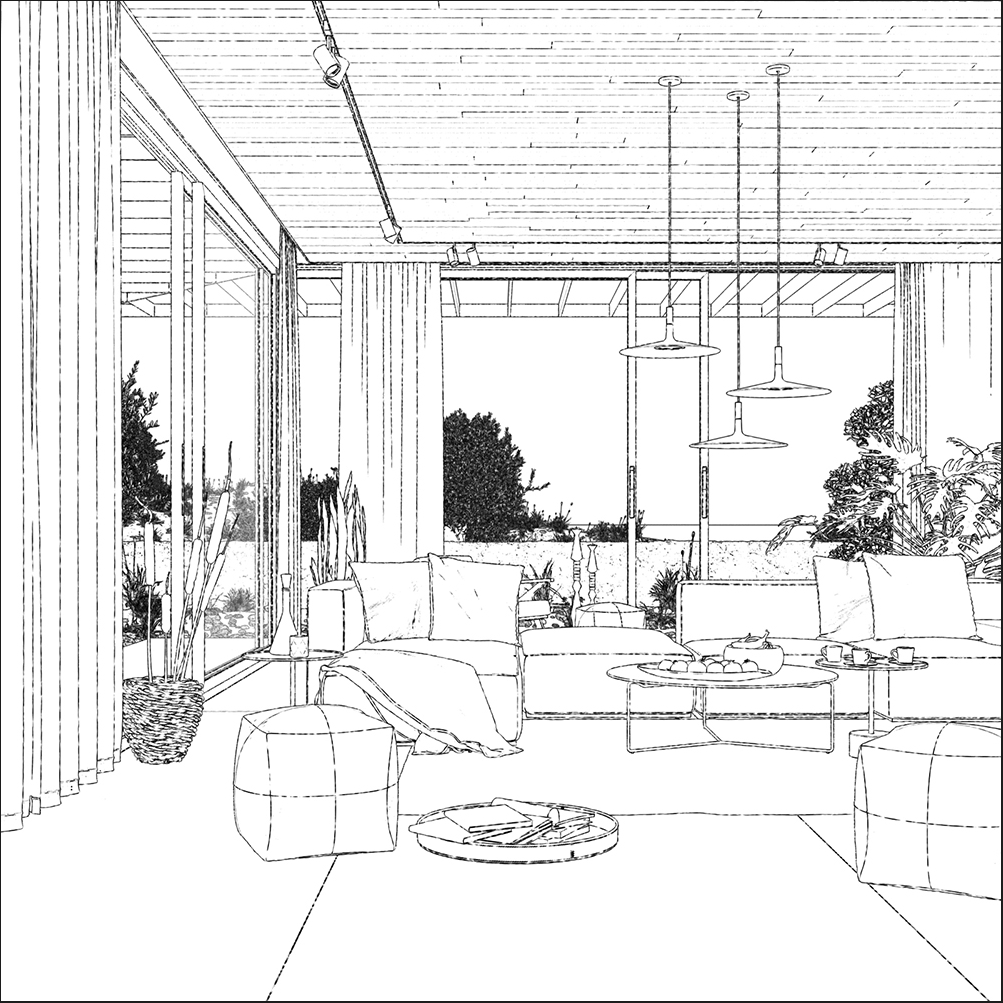
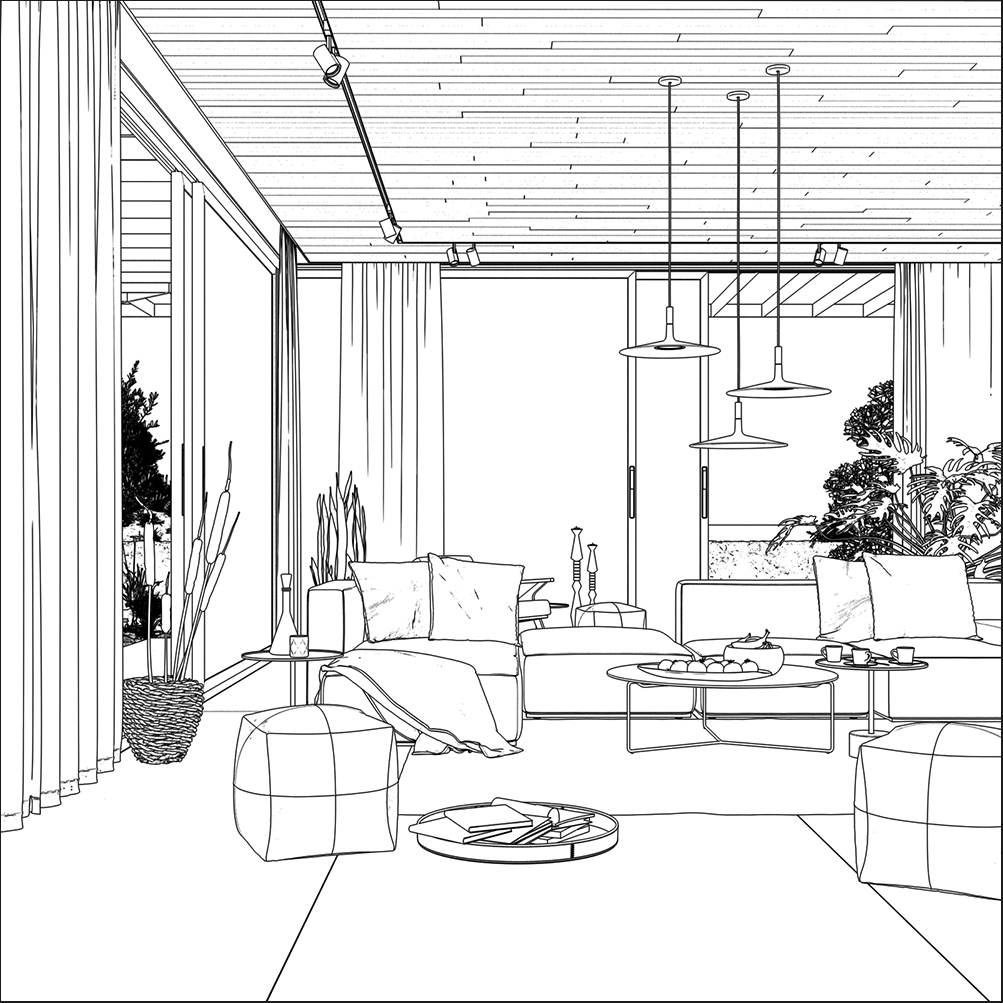
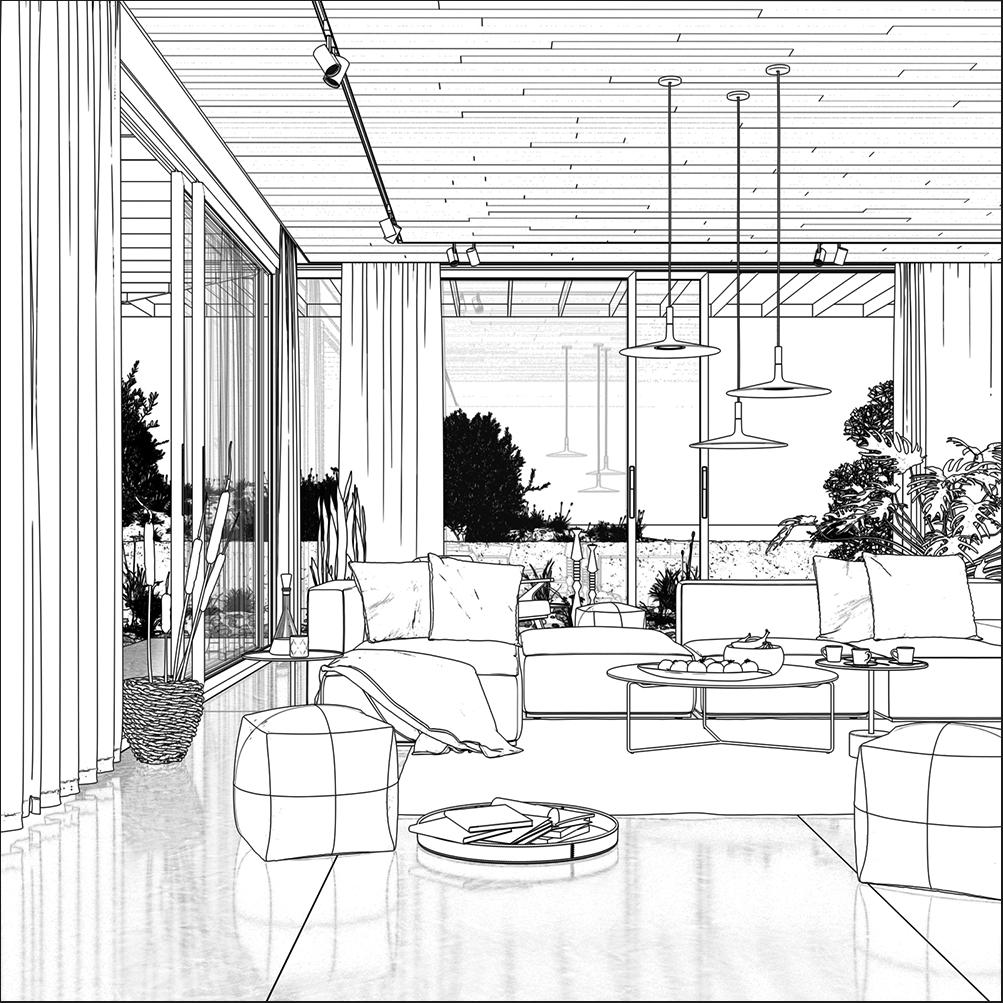
When V-Ray materials reflections and refractions are not set to Affect All channels, V-Ray Toon is not applied to them. See how the RE looks when that mode is set and when it is not. In this example, Invert color is enabled.DisabledEnabled
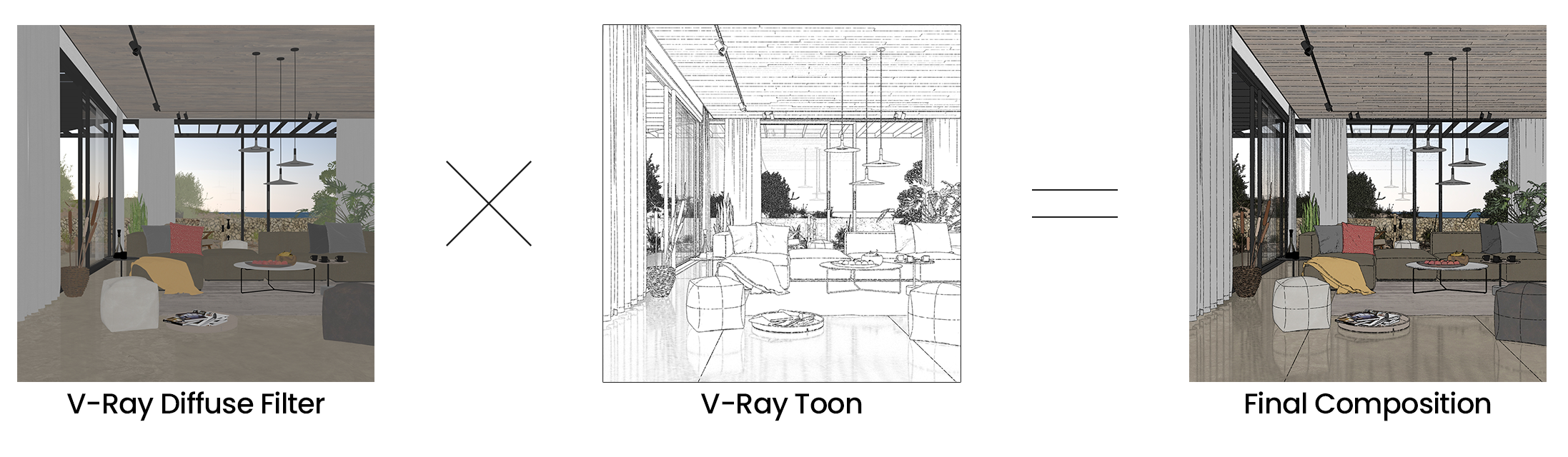
V-Ray Toon is often used for creating cartoon-like renders. This can be achieved my Multiplying it by the V-Ray Diffuse Filter Render Element in a compositing or editing software.
Notes
For the toon effect to be visible in the V-Ray Toon Render Element, the VRayToon Render Effect must be present and active.
When the Do reflections/refractions option is enabled for the V-Ray Toon Effect, then in order for all reflected and refracted toon lines to be present in the render element, you need to set the V-Ray materials' reflection and refraction to Affect All channels. Lights must also be turned on within the scene or no reflections/refractions will be present in the render.